The tool to recover iPhone data and extract contacts, messages, calendars, recordings and photos from iOS backups created by iTunes or other applications.
Recover iPhone Data from iOS Backups






iBackup Viewer is a tool for browsing iPhone backups database. Recover iPhone data and file system from local backups created by iTunes or other applications, even encrypted backups. And save person contact to Mac Address Book, export call history and iMessages to well formatted text file. View and save iPhone Apps' data quickly. Although the free version can meet the needs of most users, the pro version will provide more useful advanced features, for example save iMessages to PDF without trial marks. Get a pro license to unlock the limits.
Download the latest version of iBackup Viewer for Mac. Find the installer file file "iBackupViewer.dmg", double click the file to open and mount the installer, then drag the icon "iBackup Viewer.app" over "Applications" to finish installation.
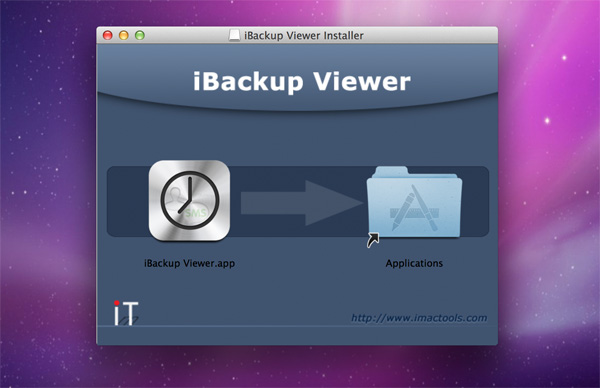
If you're running windows, download the installer with filename "iBackupViewerSetup.exe". Follow the installation steps to install iBackup Viewer on you system.
After successfully install iBackup Viewer, run it from "Applications" or Launchpad. iBackup Viewer will automatically load and show data including contacts, messages, calendar, call history, voice recordings and photos etc, if there is any backup existing on local computer. You can alternate the backup location to different directory from "Preferences"
If iBackup Viewer loads any backup successfully, it will list each backup with summary information including iOS version and name of the device
.png?centered)
Each iOS backup shows as a thumbnail, the thumbnail includes fundamental information:
Click on any backup thumbnail will lead you to the contents of the backup. Normally iBackup Viewer will load the default items: Contacts, Call History, iMessage, Calendar, Notes, Voicemail, Recordings, Safari Visit History and Bookmark, Photos, Apps, and Raw Files for every backup.
iBackup Viewer will load other supported instant message application like WhatsApp or WeChat if they are available in the backup.
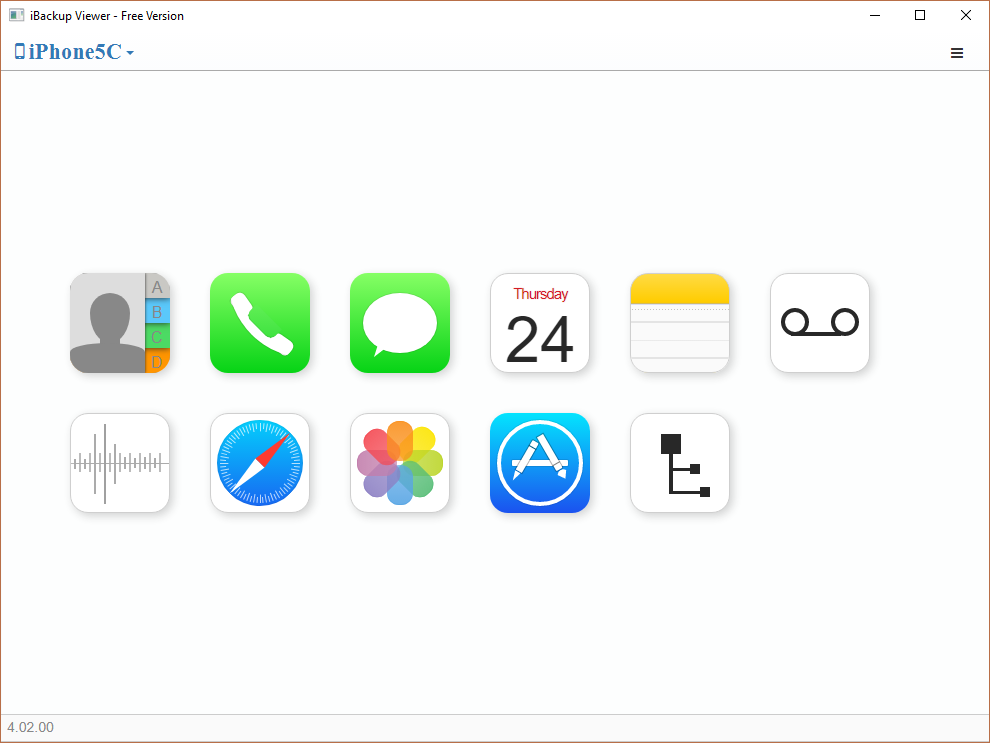
Click the correspondence item icon to save the data
iBackup Viewer can export single contact or group into vCard files, you can then import the saved vCard files into Mac Contacts or Google contacts . Following the tutorial to save contacts.
Navigate to "Call History" item from the left side bar. All calls will be shown in the right side list table. Incoming calls and outgoing calls are marked by different icons, which make it obvious to check. iBackup Viewer saves phone call history to different file formats:
iMessages and SMS messages are the most frequently requested feature from the users. iBackup Viewer can extract iMessages with attached photos and videos, and can display the message conversation in similar style as iPhone does. So that you can easily check and review chats with friends.
iBackup Viewer provides the easiest way to save messages as conversations to variant formats:

1 Domain Category List domains and domain groups
2 File list
3 Filter files

Click the "Search" icon and enter keyword to filter the files in the file list, for example enter "media/dcim/" will list all photos.
4 Switch to tree view
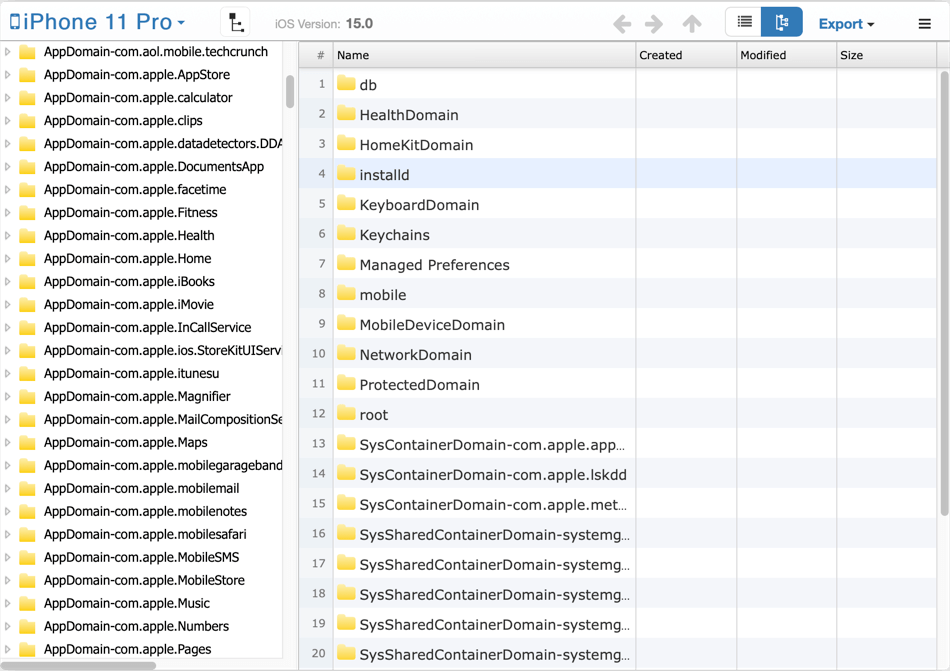
show the folders in tree structure.
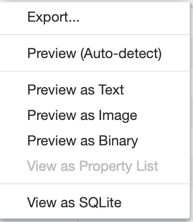
5 Export options
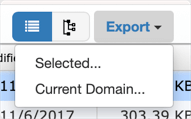
The WhatsApp icon will be visible in the left side navigation panel when the backup contains WhatsApp, choose "WhatsApp" icon to load and parse WhatsApp messages, iBackup Viewer deal with WhatsApp messages in the same way as iOS native Messages. You can of course save WhatsApp messages to text file, csv file and PDF files.
The ringtones icon is available only if iBackup Viewer finds any custom ringtones in the backups. You can then save the ringtones to your computer, and add to your iPhone with iCopyAssistant.
The Complete Guide to Backing Up & Saving Text Messages and iMessages to PDF
Export Text Messages and iMessages to PDF from iPhone Backups
Extract Photos from iPhone Backup Files
Important iTunes Backup File Paths
Recover WhatsApp Messages to PDF from iPhone Backups
Fix iTunes backup problem due to not enough space on your computer
How to delete iPhone backup from your computer
Understanding the File Structure of Mobile Documents in iPhone Backups
iPod, iPhone, iPad, iTunes, and Mac are registered trademarks of Apple, Inc. iMacTools has no commercial association with Apple, Inc. or its products. Copying of music is subject to any applicable.
